Business Software
Address Book Software
Personal Edition
Business Edition
Accessories
Order Entry Software
Sports Software
Tournament Software
Pro Edition
Lite Edition
League Software
StatTrak
Baseball & Softball
Basketball
Volleyball
Hockey
Football
Soccer
Sports Books
All Books
Contact Us
License Agreement
How to Uninstall
Upgrade Policy
Return Policy
Privacy Policy
|
|
 |
 |
 |
 |
 |
 |
|
|
Screen Images
Toolbar

|
The left to right icons on the toolbar are Open Tournament, Tournament Setup, Print, Zoom, Seed, Clear Seeds, Game Times, Compute Schedule, Chart Layout, Options, Internet Options, Publish Tournament, Scheduler Wizard.
|
Scheduler Wizard
|
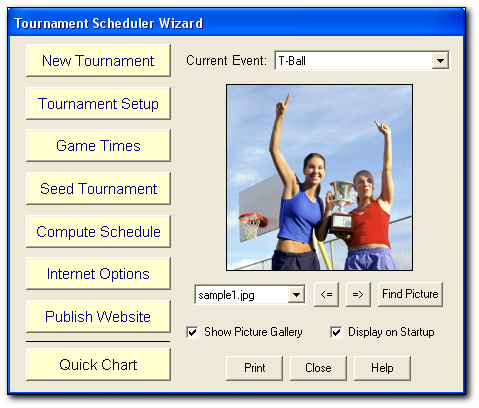
The Scheduler Wizard contains all the options you'll need to create a new tournament, add game times, seed your tournament, or create a blank chart by selecting Quick Chart. Display a picture of tournament players in the picture gallery window.
|
Tournament Setup
View Larger Image
|
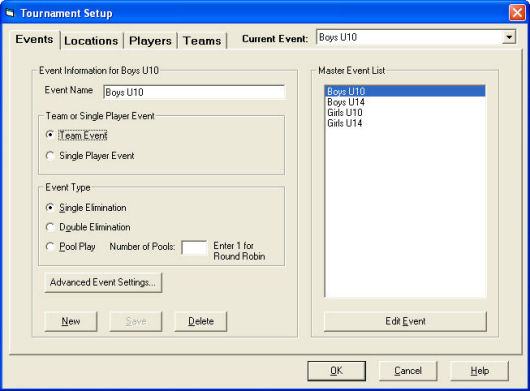
Tournament Setup is where you add events, locations, teams and players. You can create multiple events for a tournament (e.g. Pool Play followed by a Single Elimination). Assign locations, teams and players to each event.
|
Advanced Event Settings
|
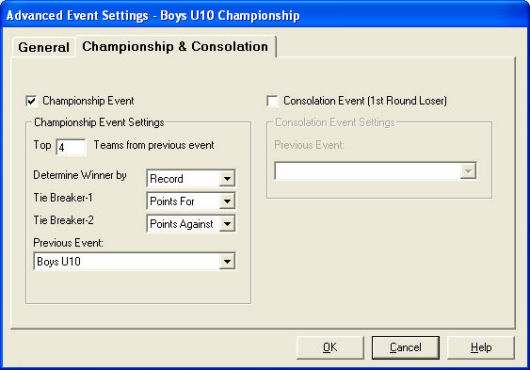
In the Advanced Tournament Settings you can create Consolation and Championship events. For Championship Events, specify the number of top finishers to automatically advance when the previous event is finished.
|
Tournament Chart
|
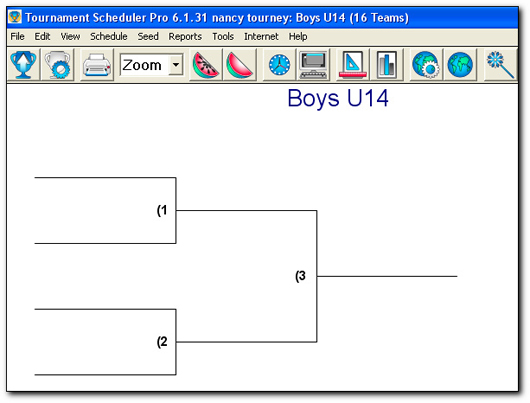
Click Seed Tournament to seed the teams. If you have not entered seed numbers, teams are seeded randomly. If you have entered seeds, teams are seeded based on the seeding method. The default seeding method is Advantage (gives advantage to top seeds). To change the seeding method, select Seeding Method from the Seed Menu. You may also manually seed teams.
|
Enter Game Times
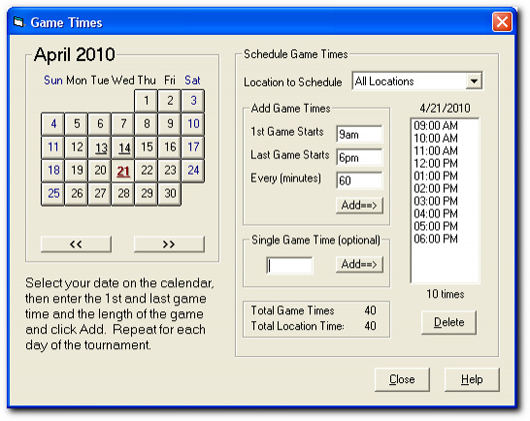
Enter game time availability for each location.
Click Compute Schedule on the Schedule Wizard screen and to automatically assign conflict-free game times to each game.
|
Schedule Report
|
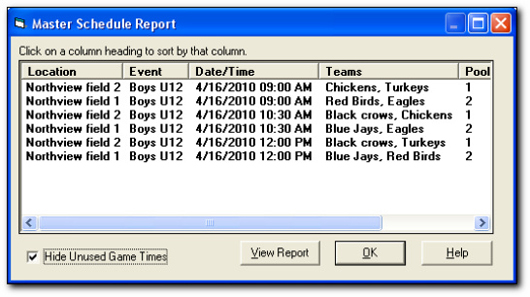
View and print the Schedule Report to easily track location usage. You can sort on any of the columns shown.
|
Game Scores
|
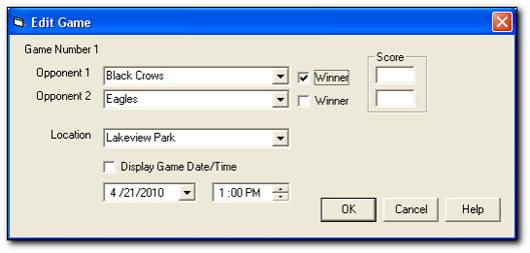
Click on any game number or set of brackets to view the Edit Game window. Winners are automatically advanced to the next bracket.
|
Event Results
|
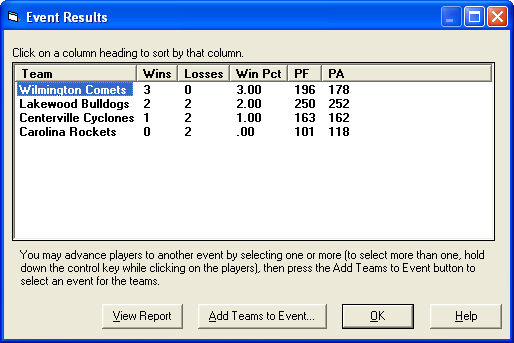
View and print the event results at any time to keep track of standings. You can sort on any of the columns shown.
|
Chart Layout
|
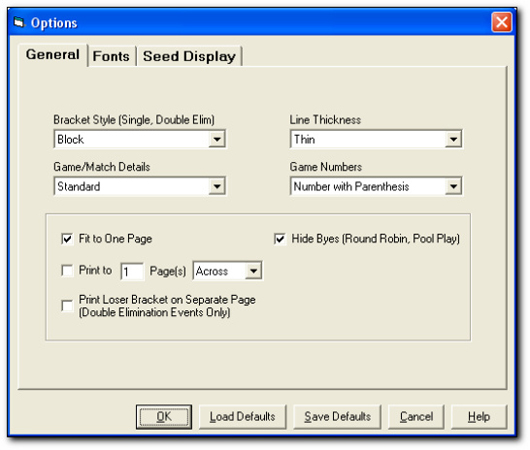
The Options screen allows you to choose the bracket style, bracket line thickness and other setting to customize the way your tournament appears when printed. The fonts tab allows you to specify the fonts and font color for different portions of the tournament chart (e.g., title, player/team name, game location).
|
Internet Options
View Larger Image
|
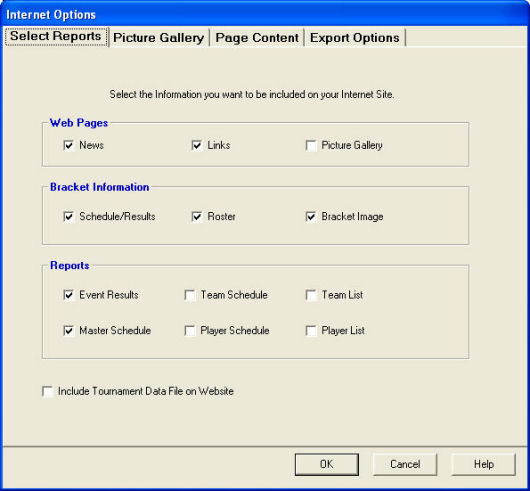
Included in your purchase of Tournament Scheduler Pro is your own free tournament website. The Internet Options screen is where you select the reports and pictures to include on your website. Use the Page Content tab to enter custom text. Click on the Publish icon to create your tournament website.
|
Website Picture Gallery
View Larger Image
|
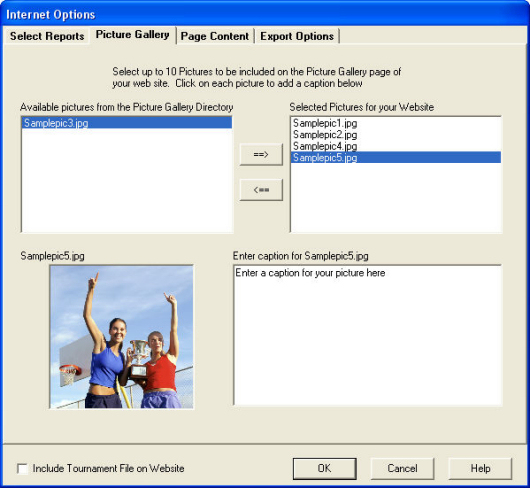
The Picture Gallery tab allows you to select up to 10 pictures and captions to display on your tournament website.
|
|
|  |
 |
 |
 |
|
|
|