on the toolbar or select
Game Times from the Schedule Menu to bring up the Enter Game Times Screen.
on the toolbar or select
Game Times from the Schedule Menu to bring up the Enter Game Times Screen.Click on the toolbar or select
Game Times from the Schedule Menu to bring up the Enter Game Times Screen.
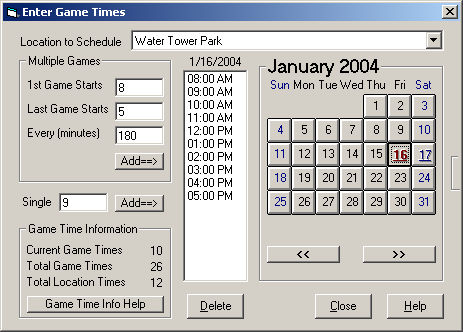
You need to enter game times available for each location in the tournament. From this screen you can choose to schedule times for all locations or individual locations.
By default, all locations are selected. If you want to schedule game times for locations individually, you choose the location using the 'Location to Schedule' listbox. Note that when 'All Locations' is chosen, only game times that exist in every location will be shown. If you create game times for all locations, then add additional locations, you will need to chose each of the previous locations separately to edit the game times.
You can either compute multiple game times or enter a single game time. Select the location to add game times for by selecting from the drop-down list box at top of the screen. To enter a single game time, enter the game time in the Single entry field and then click Add==>. To enter multiple game times, enter the time the 1st Game Starts, the time the Last Game Starts, the minutes between games next to Every (minutes) and then click Add==>.
Note that you may add game times in many formats. For example, to enter 7am, type "7:00am", "7am" or simply "7". If you enter a number larger than 8, the program will assume AM. If you enter a number less than 8, the program will assume PM, unless the number is 12 in which case it will assume PM.
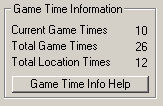
The Game Time Information window displays helpful statistics for scheduling.
Current Game Times is the number of Game Times displayed in the list box to the right.
Total Game Times is the number of Game TImes that have been created for all locations on all dates.
Total Location Times is the number of Game Times scheduled for the location that is selected in the Location to Schedule listbox. This is useful for determining the balance of Game Times between locations.
Game Time Info Help button brings you to this help screen.